Entity Framework Core
Add-Migration
References
Code First - http://www.entityframeworktutorial.net/efcore/entity-framework-core-console-application.aspx
Migrations Commands
Add-Migration
Creates a migration script analysing changes since the previous model. No modification is done to database.
After generation you can edit the UP and Down from the Migration object.
Install the Package Manager Console tools by running the following command in Package Manager Console:
PowerShell
Install-Package Microsoft.EntityFrameworkCore.Tools
Update the tools by running the following command in Package Manager Console.
PowerShell
Update-Package Microsoft.EntityFrameworkCore.Tools
Create Database Schema
In Visual Studio, open NuGet Package Manager Console from Tools -> NuGet Package Manager -> Package Manager Console
Check if you are on the correct project :
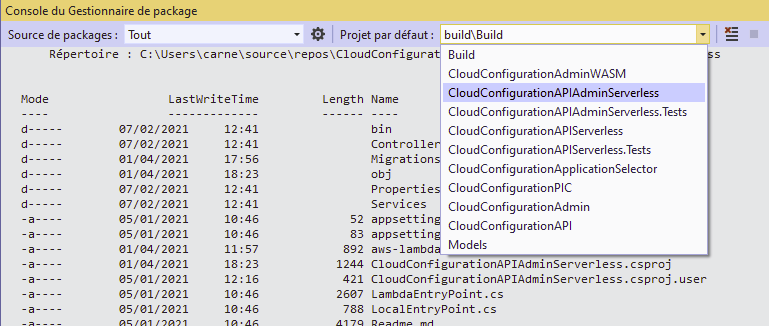
and enter the following command:
PM> add-migration CreateSchoolDB
After creating a migration, we still need to create the database using the update-database command in the Package Manager Console, as below.
PM> update-database –verbose
DBContext
DbContext Methods
| Method | Usage |
|---|---|
| Add | Adds a new entity to DbContext with Added state and starts tracking it. This new entity data will be inserted into the database when SaveChanges() is called. |
| AddAsync | Asynchronous method for adding a new entity to DbContext with Added state and starts tracking it. This new entity data will be inserted into the database when SaveChangesAsync() is called. |
| AddRange | Adds a collection of new entities to DbContext with Added state and starts tracking it. This new entity data will be inserted into the database when SaveChanges() is called. |
| AddRangeAsync | Asynchronous method for adding a collection of new entities which will be saved on SaveChangesAsync(). |
| Attach | Attaches a new or existing entity to DbContext with Unchanged state and starts tracking it. |
| AttachRange | Attaches a collection of new or existing entities to DbContext with Unchanged state and starts tracking it. |
| Entry | Gets an EntityEntry for the given entity. The entry provides access to change tracking information and operations for the entity. |
| Find | Finds an entity with the given primary key values. |
| FindAsync | Asynchronous method for finding an entity with the given primary key values. |
| Remove | Sets Deleted state to the specified entity which will delete the data when SaveChanges() is called. |
| RemoveRange | Sets Deleted state to a collection of entities which will delete the data in a single DB round trip when SaveChanges() is called. |
| SaveChanges | Execute INSERT, UPDATE or DELETE command to the database for the entities with Added, Modified or Deleted state. |
| SaveChangesAsync | Asynchronous method of SaveChanges() |
| Set | Creates a DbSet<TEntity> that can be used to query and save instances of TEntity. |
| Update | Attaches disconnected entity with Modified state and start tracking it. The data will be saved when SaveChagnes() is called. |
| UpdateRange | Attaches a collection of disconnected entities with Modified state and start tracking it. The data will be saved when SaveChagnes() is called. |
| OnConfiguring | Override this method to configure the database (and other options) to be used for this context. This method is called for each instance of the context that is created. |
| OnModelCreating | Override this method to further configure the model that was discovered by convention from the entity types exposed in DbSet<TEntity> properties on your derived context. |
DbContext Properties
| Method | Usage |
|---|---|
| ChangeTracker | Provides access to information and operations for entity instances this context is tracking. |
| Database | Provides access to database related information and operations for this context. |
| Model | Returns the metadata about the shape of entities, the relationships between them, and how they map to the database. |
Scaffold Database (PostGres)
Créer un projet C# ASP Net Core
Il faut ajouter le Nuget correspondant à Postgres dans le projet avec les commandes suivantes
Install-Package Microsoft.EntityFrameworkCore.Design
Install-Package Npgsql.EntityFrameworkCore.PostgreSQL
Installing the tools
dotnet ef can be installed as either a global or local tool. Most developers prefer installing dotnet ef as a global tool using the following command:
dotnet tool install --global dotnet-ef
To use it as a local tool, restore the dependencies of a project that declares it as a tooling dependency using a tool manifest file.
Update the tool using the following command:
dotnet tool update --global dotnet-ef
Verify installation
Run the following commands to verify that EF Core CLI tools are correctly installed:
dotnet ef
The output from the command identifies the version of the tools in use:
                     _/\__
               ---==/    \\
         ___  ___   |.    \|\
        | __|| __|  |  )   \\\
        | _| | _|   \_/ |  //|\\
        |___||_|       /   \\\/\\

Entity Framework Core .NET Command-line Tools 2.1.3-rtm-32065

<Usage documentation follows, not shown.>
dotnet ef dbcontext scaffold "Server=localhost;Database=Test;Username=postgres;Password=password" Npgsql.EntityFrameworkCore.PostgreSQL -o Models
Ajouter Postgres dans Projet ASP Net Core
Installer les Packages Nuget
Il faut ajouter le Nuget correspondant à Postgres dans le projet avec les commandes suivantes
Install-Package Microsoft.EntityFrameworkCore.Design
Install-Package Npgsql.EntityFrameworkCore.PostgreSQL
Vérifier que l'on a un DBContext
Il faut au moins un model qui dérive de DBContext nécessaire.
public partial class PEActionContext : DbContext
{
  public PEActionContext()
  {
  }

  public PEActionContext(DbContextOptions<PEActionContext> options)
  : base(options)
  {
  }

  public virtual DbSet<Agence> Agences { get; set; }

..... etc
En ajoutant un DbSet on rends la table disponible.
Fichier Startup.cs
Dans la méthode ConfigureServices ajouter :
services.AddDbContext<PEActionContext>(options =>
                                       options.UseNpgsql(
                                         @$"Server={Configuration["DBHost"]};Port=5432;Database={Configuration["DBDatabase"]};Username={Configuration["DBAdmin"]};Password={Configuration["DBPassword"]}")
                                      );
Cela rajoute au moteur d'injection le DbContext pour qu'il puisse ensuite être utilisé dans le code.
Pour l'utiliser depuis un Controller
Il faut pour cela initialiser le constructeur du Controller avec l'objet DBContext correspondant, dans notre exemple PEActionContext que nous avons déclaré dans le service de Startup.cs
Si le contructeur n'exite pas on le crée avec pour paramètre un objet de type PEActionContext .
C'est le moteur d'injection de ASP Net Core qui se chargera de créer l'instance de l'objet dans le paramètre du constructeur.
[Route("api/[controller]")]
    public class AgencesController : ControllerBase
    {
        private PEActionDbContext _peActionDbContext;
        public AgencesController(PEActionDbContext peActionDbContext)
        {
            _peActionDbContext = peActionDbContext;
        }